Physical Address
304 North Cardinal St.
Dorchester Center, MA 02124
Physical Address
304 North Cardinal St.
Dorchester Center, MA 02124


Step-by-step guide to convert CAD into VR-ready assets using Blender and Unity HDRP. Reduce triangles, materials, and draw calls for smooth performance.
The first time I dropped a pristine CAD model into Unity, it looked fine in the editor — but in VR, the headset choked. Millions of triangles, hundreds of materials, and a frame rate that crawled. That’s when I learned a truth every XR designer runs into: CAD models are built for precision, not real-time. To make them VR-ready, they need cleaning, trimming, and repacking.
This guide walks through a practical workflow: converting CAD files into smooth, optimized VR assets using Blender as the bridge into Unity HDRP.
The first challenge is simply importing CAD into Blender. CAD tools describe objects as precise mathematical surfaces (B-reps), while Blender and Unity require polygon meshes (triangles).
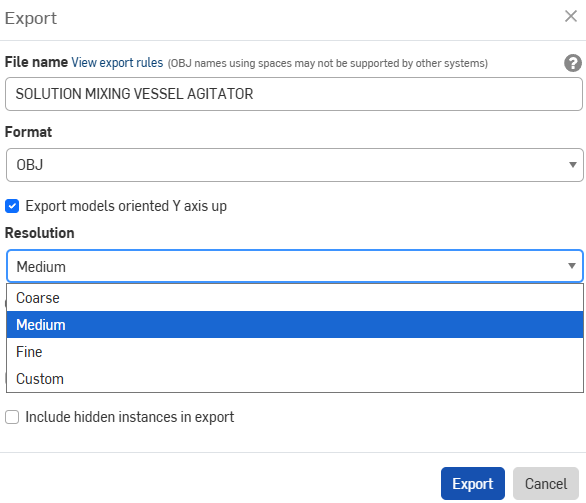
From CAD, I usually export via FreeCAD or OnShape in a format Blender understands — STEP, IGES, or Parasolid (with add-ons), or more commonly OBJ/FBX/STL/GLTF. Key export settings:
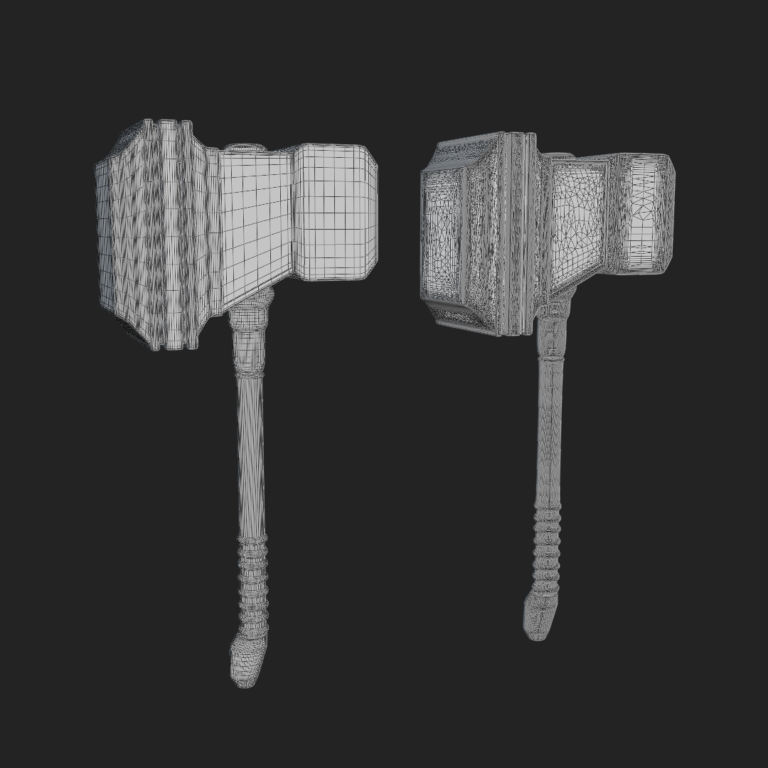
Once the model is in Blender, the real work starts. CAD exports are usually heavy, messy, and full of geometry you’ll never need in VR.
M → Merge by Distance.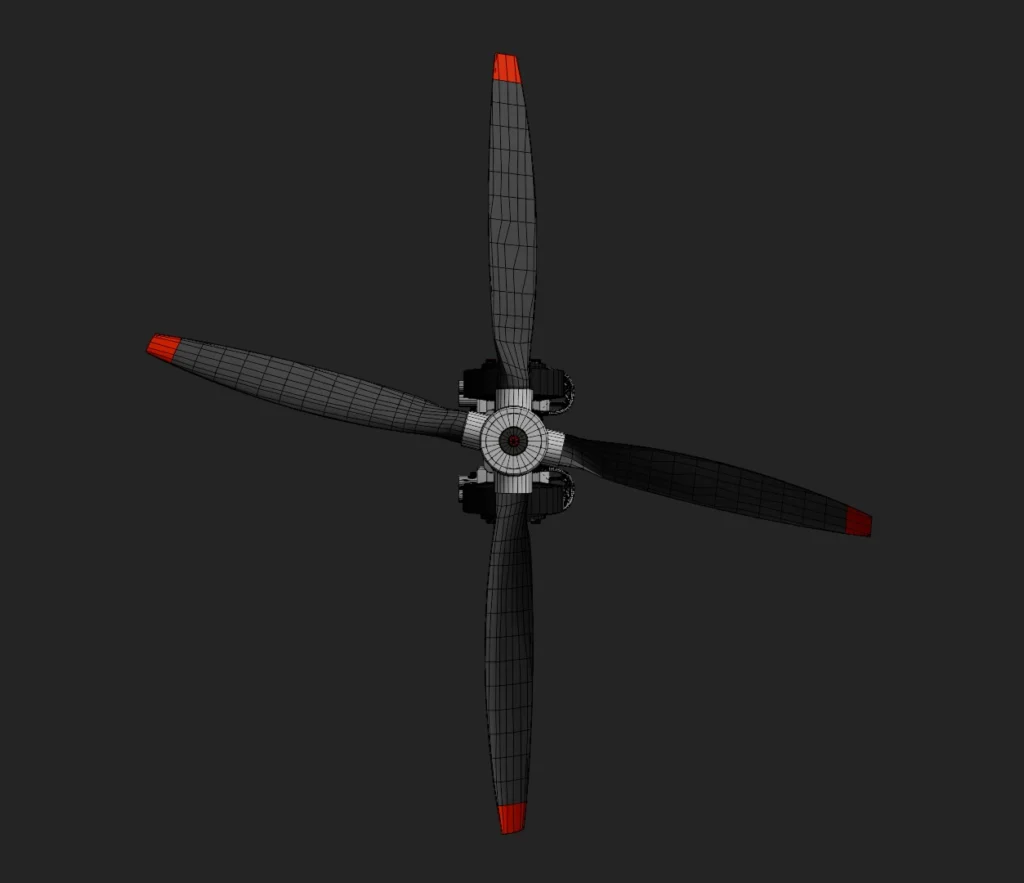
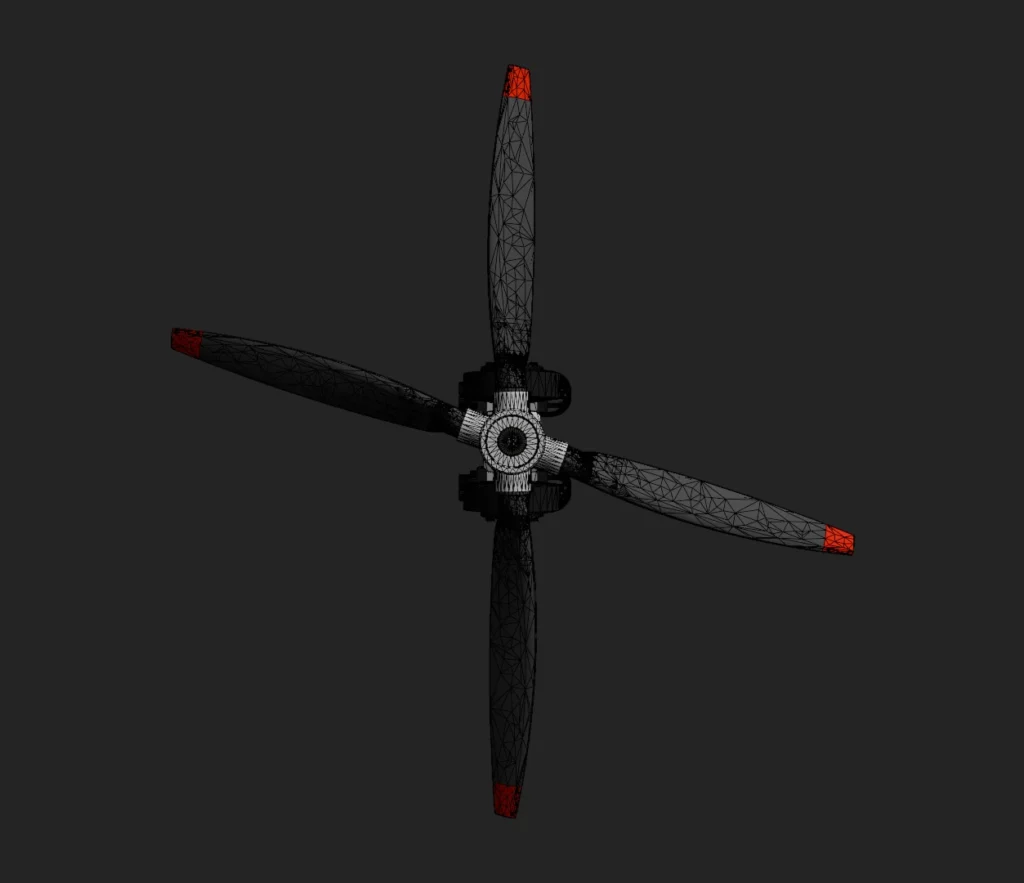
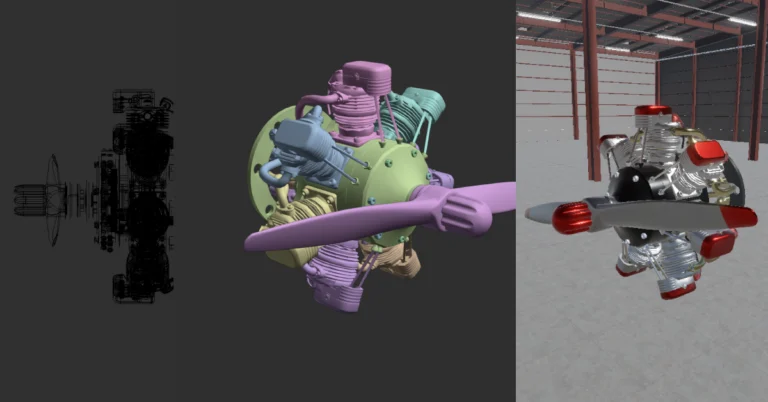
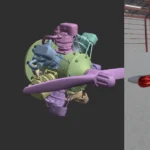
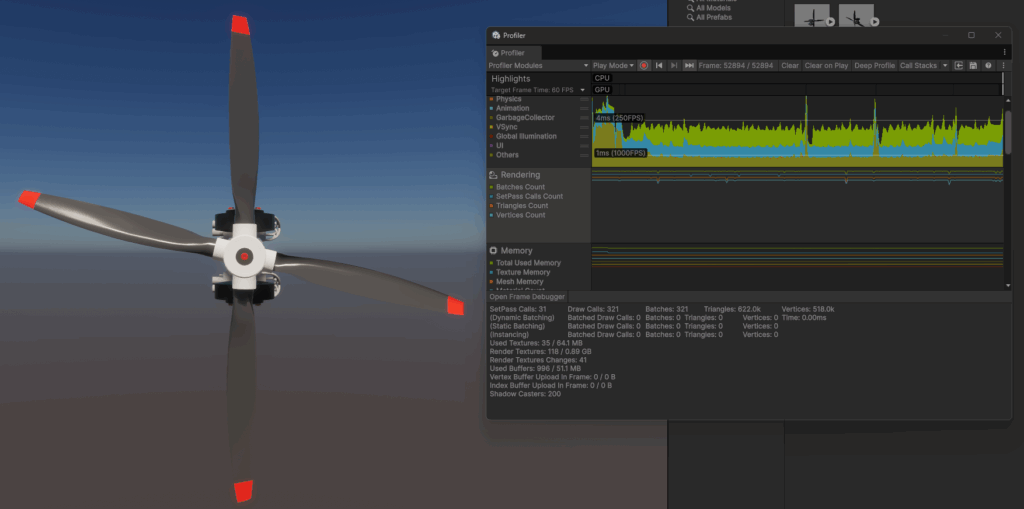
For example: the propeller above started at 250K triangles and 20+ materials. After cleanup, it dropped to 170K triangles and just 5 materials — a 30% reduction while keeping full visual fidelity.
With the model cleaned, export it to Unity. FBX is the safest format. In Blender’s export panel, be sure to check:
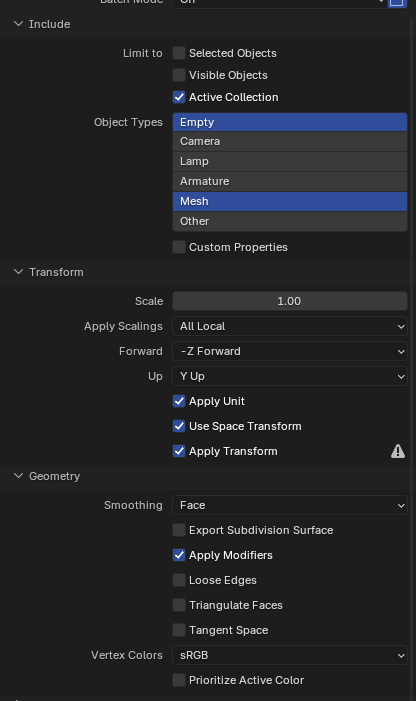
Pro tip: if the model imports at the wrong size (100× too big or too small), it usually means Scale wasn’t applied before export.
Now for the satisfying part — drag your FBX into Unity HDRP.
Unity generates a mesh asset automatically. Drop it into a scene, open the Inspector, and you’ll usually need to:
If the model shows up pink, Unity can’t find the textures. Check Blender’s export paths and confirm textures are copied into your Unity project.
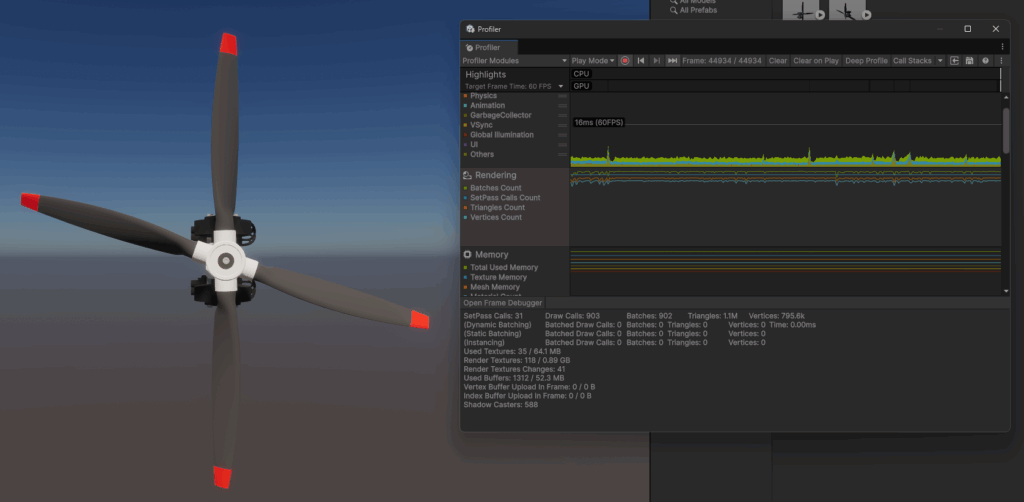
Here’s why the cleanup matters — a quick performance comparison:
| Stage | Triangles | Draw Calls |
|---|---|---|
| Raw CAD Import | 1.1M | 902 |
| Blender Cleaned | 622K | 296 |
Here’s a quick reference checklist to keep handy:
Optimising CAD for VR/AR isn’t glamorous, but it makes the difference between a jittery demo and a smooth, convincing experience. Do it a few times and it becomes second nature — and you’ll never drop a multi-million-triangle monster into Unity again.